
We’ve posted tips on how to check your account statement previously, but here are some extra details you can access regarding your earnings and activities!
Once you’ve selected “Account Statement” from the dropdown arrow next to your name or by clicking on your Point total in the upper left, you’ll see your Redeemable/Pending Points on the left and lifetime Point total on the right:

When you click on your lifetime Points on the right, you’re taken to a page with more details on your MyPoints activity!
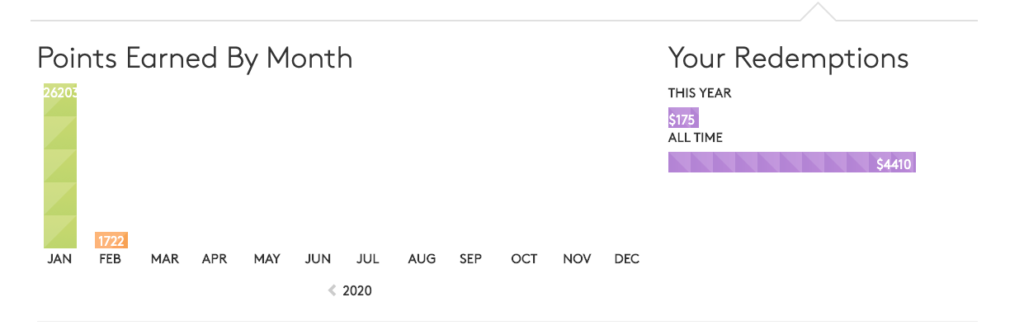
On the left, you can see how many Points you’ve earned each month. Use the arrow next to the calendar year below the graph to go back to previous years.
On the right, you can see the cash total you’ve redeemed for this year and over the course of your MyPoints membership.
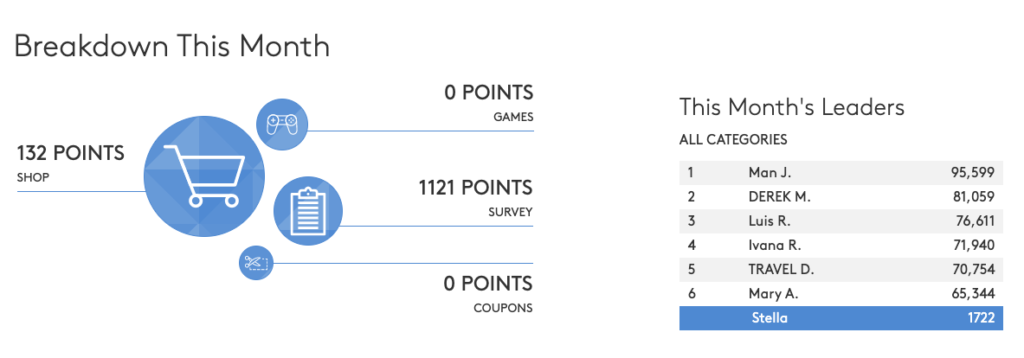
Below that on the left, is a breakdown of how you’ve earned your Points divided by Shop, Survey, Games and Coupons. On the right, is a leaderboard which shows how your earning stack up against this month’s leaders.
You can just click on your Redeemable/Pending Points in the upper left to go back to your main account statement.